Using the Upgraded EBS Portal
You will notice some refreshing changes to the EBS Portal beginning July 27, 2026. Learn more in the sections below.
Navigating the EBS Portal
Where do I find tiles?
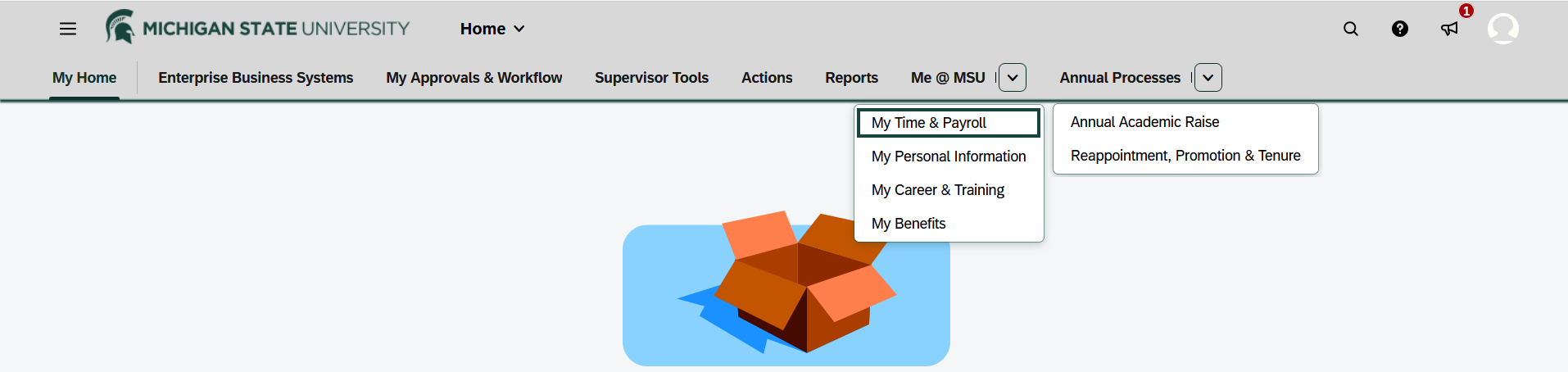
Tiles are in the same group as before; however, some groups are stacked together (under “Me @ MSU” or “Annual Processes”) to take less space in the navigation.
| Previous Location | New Location |
| Enterprise Business Systems | Enterprise Business Systems |
| My Approvals & Workflow | My Approvals & Workflow |
| My Time & Payroll | Me @ MSU → My Time & Payroll |
| My Personal Information | Me @ MSU → My Personal Information |
| My Training & Career | Me @ MSU → My Training & Career |
| My Benefits | Me @ MSU → My Benefits |
| Supervisor Tools | Supervisor Tools |
| Actions | Actions |
| Reports | Reports |
| Reappointment, Promotion & Tenure | Annual Processes → Reappointment, Promotion & Tenure |
| Annual Academic Raise | Annual Processes → Annual Academic Raise |
The EBS Portal now has a condensed, two-level, navigation!
Watch the quick video (3 min., 32 sec.) for a tour of the EBS Portal.
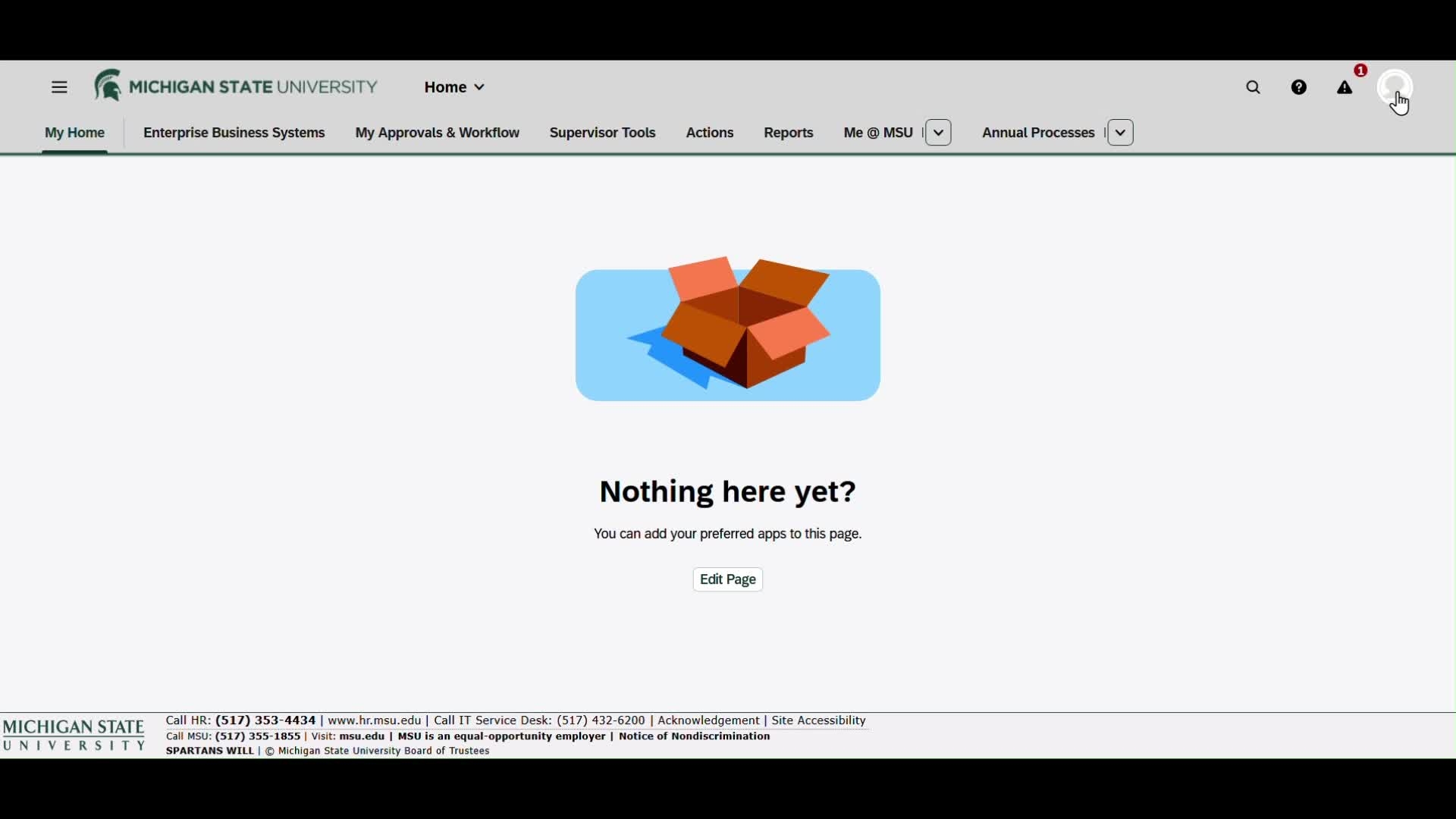
The top header row of the EBS Portal has these features:
- “Open Menu”: an alternate way to navigate (and personalize)
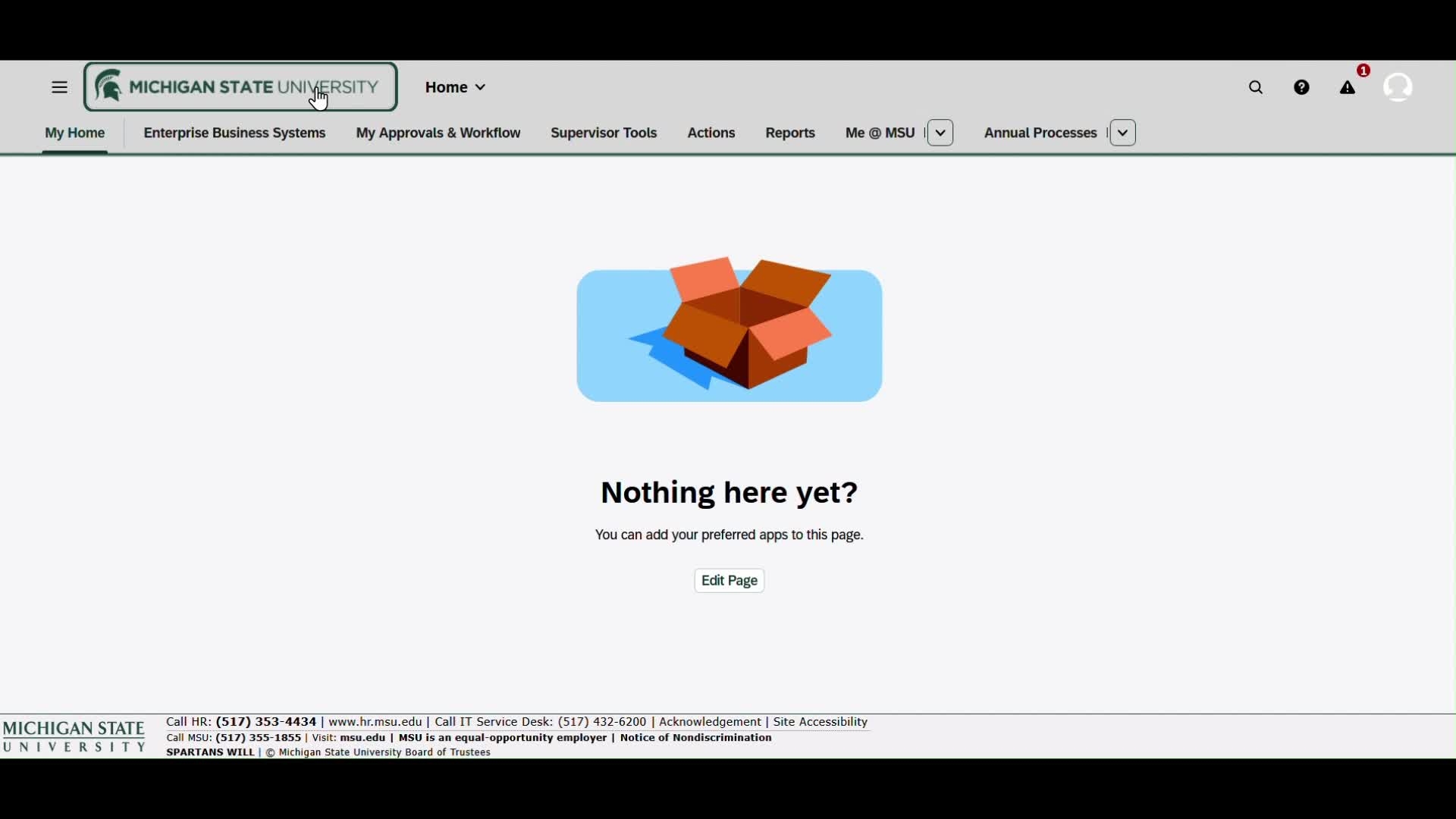
- Clicking the MSU logo takes you back to the first tab in the tab strip
- As you navigate the “Home” button becomes the name of the page you are on; opening it allows you to navigate back one step
- There is an option to search for tiles by name or keyword
- The help icon takes you to a page-specific help document
- The notifications icon shows when a notice is available
- The “Profile” has log off, recently/frequently used tiles, and settings
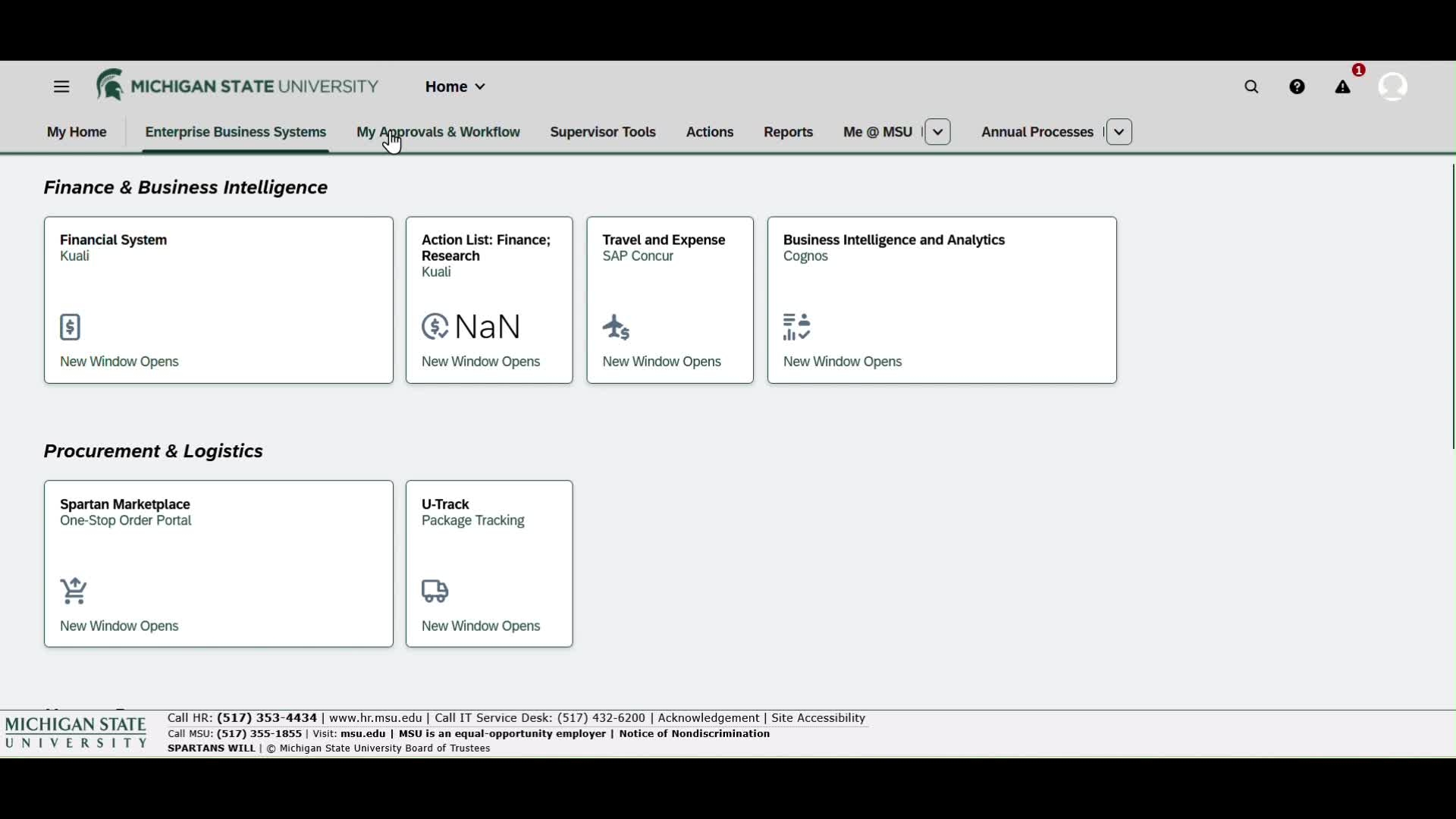
The tab strip is arranged based on feedback from employees:
- Build “ My Home ” to meet your needs (always first unless disabled)
- “ Enterprise Business Systems ” gives you quick access to other systems
- “ My Approvals & Workflow ” presents tasks awaiting your approval
- Employees who manage other people's information more than their own find their spaces next: “ Supervisor Tools ,” “ Actions ,” and “ Reports ”
-
“Me @ MSU”: familiar pages with your own information:
- My Time and Payroll
- My Personal Information
- My Career & Training
- My Benefits
-
“Annual Processes,” tiles only used part of the year, are at the end
- Annual Academic Raise
- Reappointment, Promotion & Tenure
Learn five ways to navigate the EBS Portal (1 min., 12 sec.):
-
Predefined tabs across the top
See “Rearrange Tabs” below -
Customizing “My Home”
See the three “My Home” sections below - “Open Menu” in the upper left can take you to any group of tiles, and directly to any tile placed in “My Home”
- “Recent Activities” and “Frequently Used” tiles lists are in your “Profile”
- Search for tiles in the EBS Portal header, including searching by relevant keywords
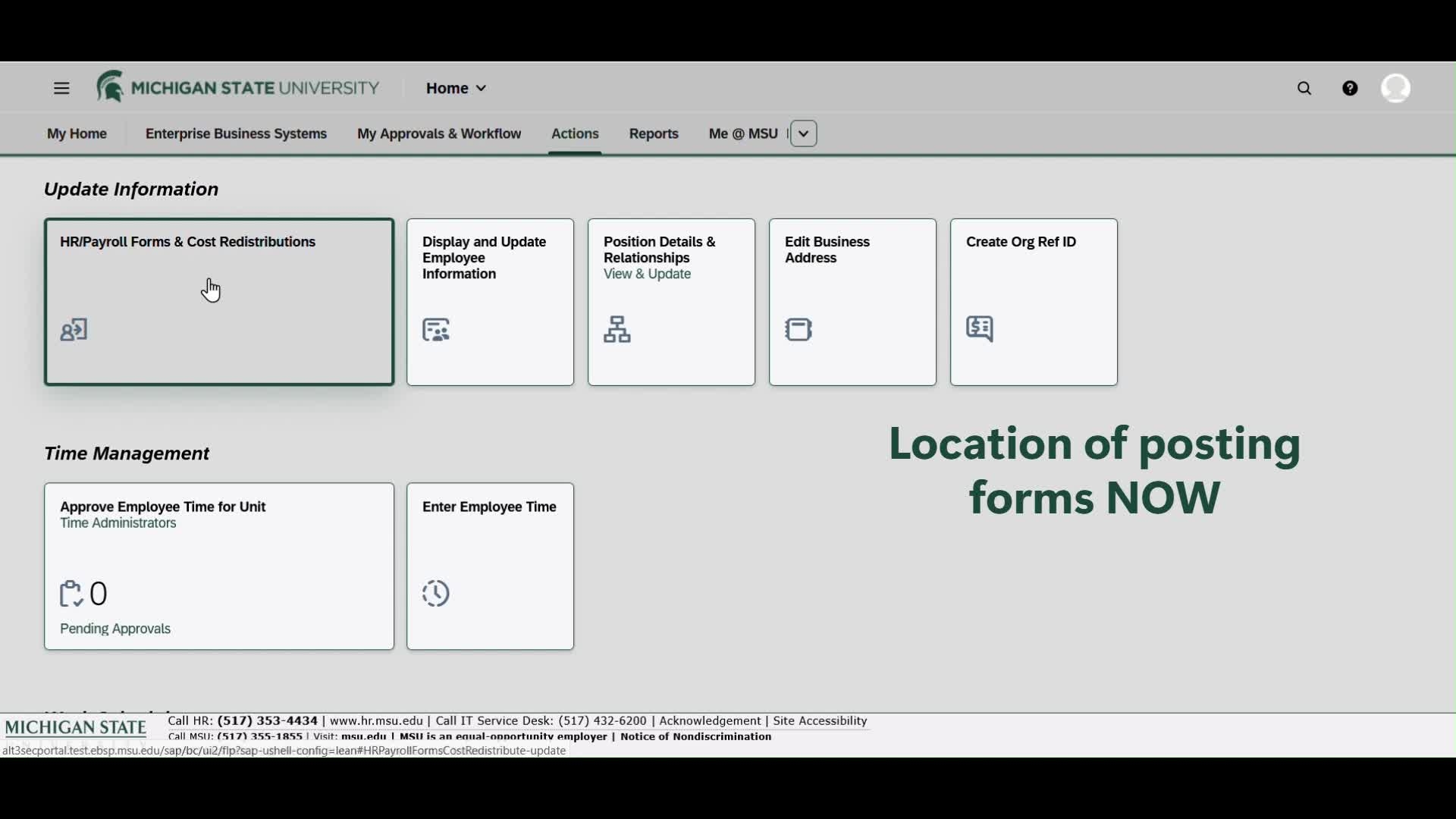
We were asked, “why aren't the position posting forms part of the ‘HR/Payroll Forms & Cost Redistributions’ forms launchpad?”
It makes sense, so we moved them.
People with relevant Unit Administrator roles will find those forms in “HR/Payroll Forms & Cost Redistributions,” which is still under the ”Actions" grouping of tiles.
Watch the 1 minute, 8 second second "Posting Forms" video for a demonstration.
Personalizing the EBS Portal
Any rearrangement of tiles that you “personalized” from the prior EBS Portal MAY be available to import. Learn how with the "Importing Personalization" video (1 min., 6 sec.).
NOTE : If you did not personalize the prior EBS Portal, this option will NOT show.
NOTE : Even if you did personalize the prior EBS Portal, this option may NOT be available to you if that personalization had any issues.
Step-by-Step
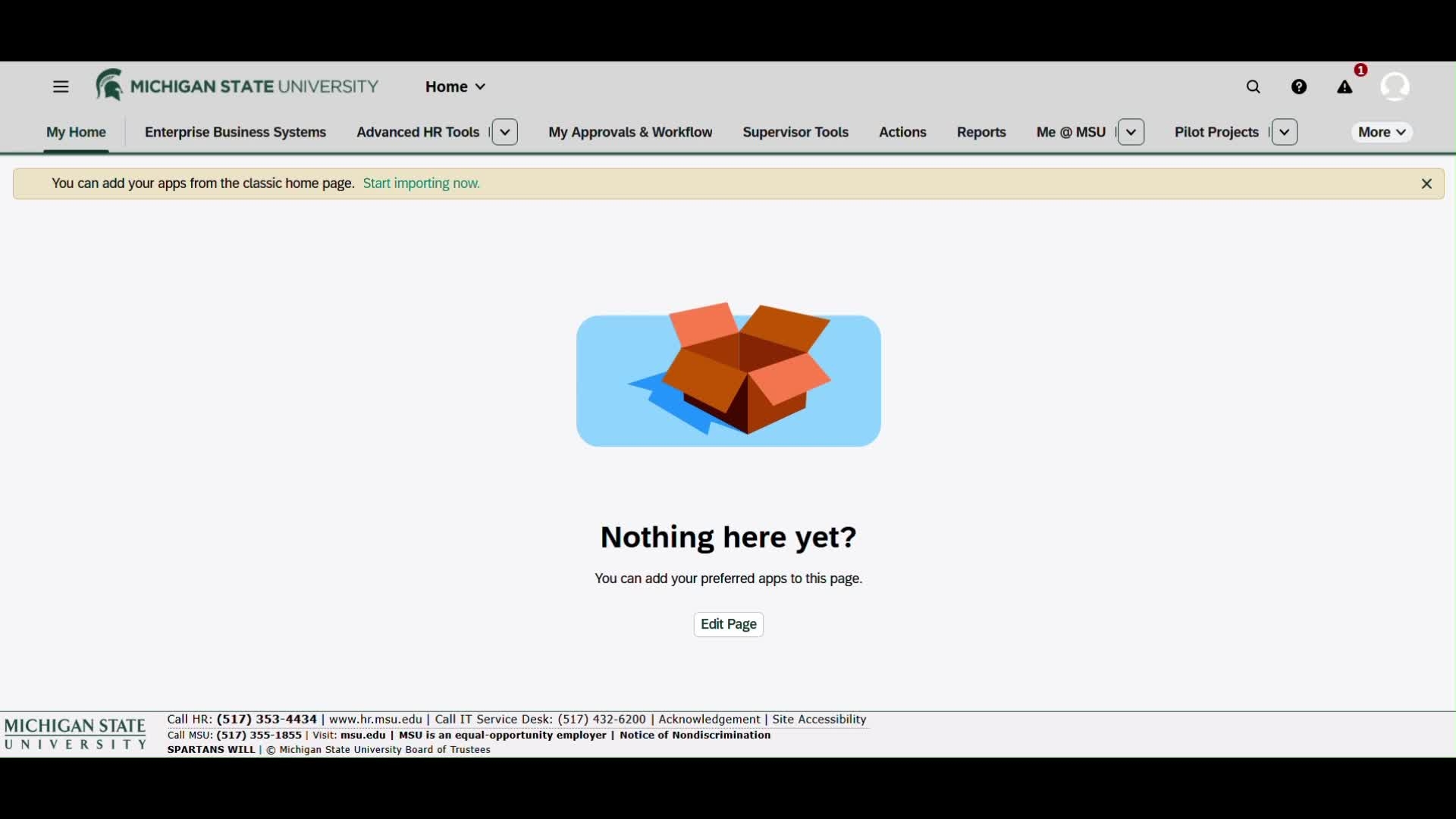
If you had personalized the EBS Portal previously, you MAY be prompted to import those preferences into the updated EBS Portal.
- Choose “Start importing now”
- Select the personalized groups which you would like to import
- Select “Import”
Those groups will now appear as sections in your “My Home” tab.
You can further edit "My Home;" see the “Rearrange My Home” section of this page.
Can I Hide This and Come Back to It?
If you want to hide this option for later, use the option under your Profile:
- Go to "Profile"
- Then "Settings"
- Under "Spaces and Pages"
- Uncheck "Show Import Message"
You may return later and turn this back on again.
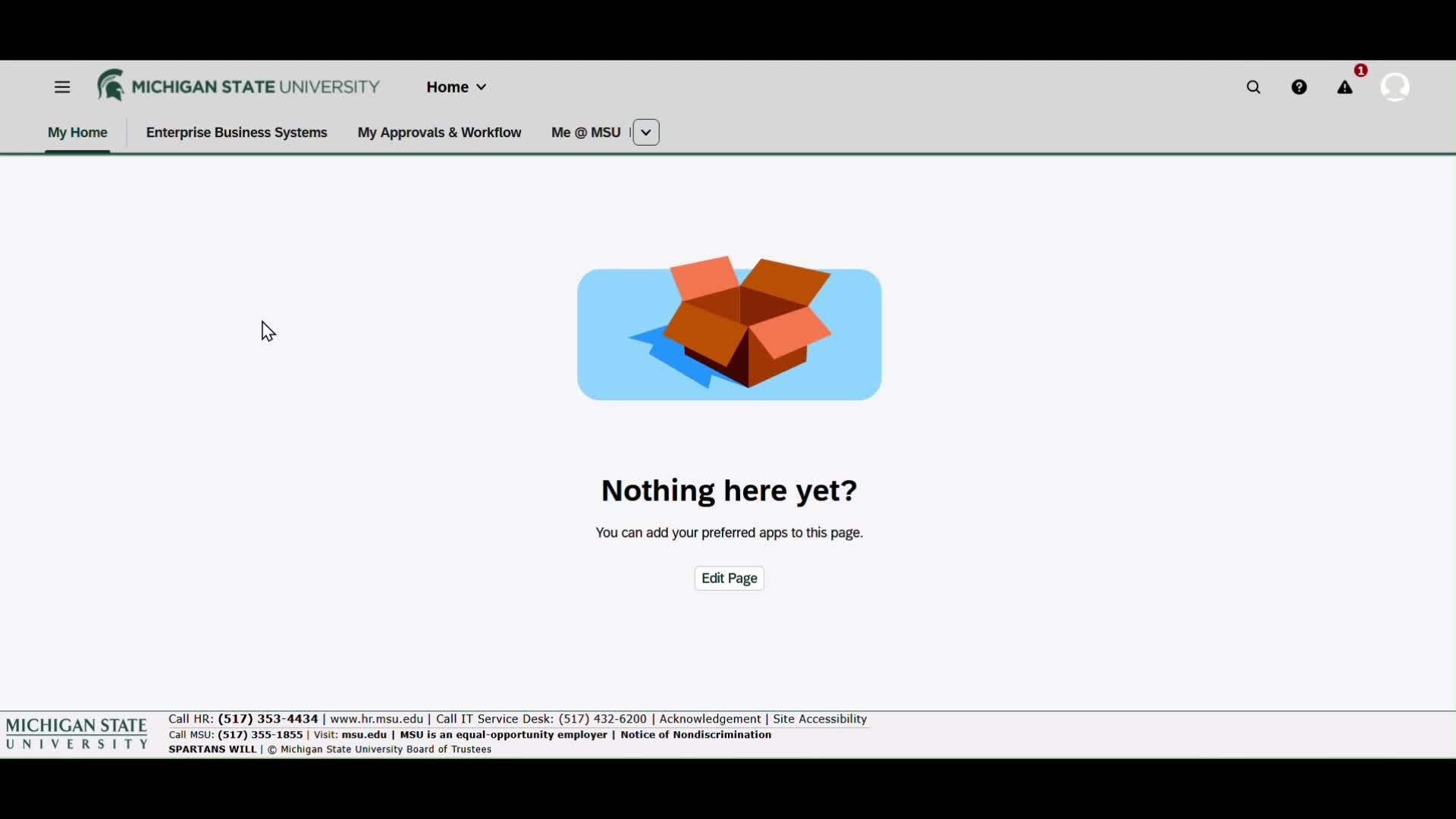
“My Home” is your place to build a layout customized to how you do your work. Watch the "Adding Tiles" video to learn more (1 min., 24 sec.).
HELPFUL ANALOGY: This is very much like how a shopping site works. You find the item (go to the page that has the tile), then add it to the cart (My Home).
NOTE : Use the "Edit Page" button to rearrange the page AFTER you have added tiles.
To add tiles to your “My Home” space you basically "PUSH" them there from the page where the tiles are already located.
- Go to the tab page with the tile (for example "Enterprise Business Systems", or "My Time & Payroll")
- Open the “Profile” (person icon) at the top of page
- Select “Add Tile to My Home”
- In the corner of the tile, select “Tile Actions” (three dots icon)
- Select the “Add to My Home” button
- Go back to “Profile”
- Select “Exit Add Tiles Mode”
“My Home” now contains those tiles.
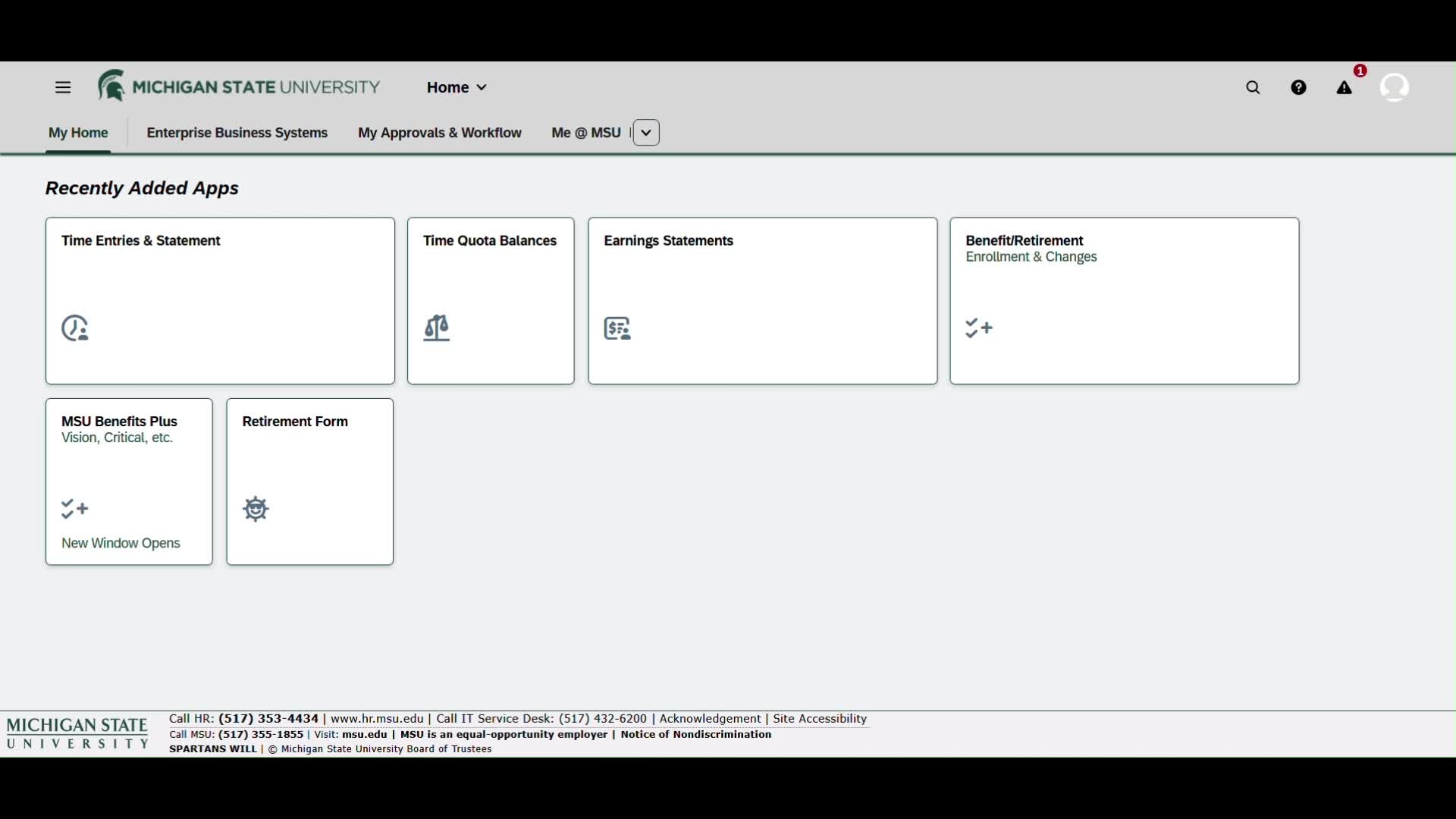
Once you've added tiles to your “My Home” page, arrange and size them however you like. Watch the "Rearrange My Home" video to learn more (2 min., 24 sec.).
To modify the layout of “My Home”:
- Go “Profile” (person icon) at top
- Select “Edit My Home”
- Create new Sections
-
Drag tiles to those sections
Keyboard users: Use the spacebar to select the context-help and use “Move” -
You can also drag sections around
Keyboard users: Hold down the control key and use the right or left arrow key to reorder.
Optionally, you can resize tiles:
- Open “Tile Actions” (three dots icon)
- Choose the tile size:
|
Link |
as needed |
|
|
Flat Wide Tile |
half |
twice normal |
|
Flat Tile |
half |
normal |
|
Wide Tile |
normal |
twice normal |
|
Tile |
normal |
normal |
|
Option |
Height |
Width |
When complete
- Go back to “Profile”
- Choose “Exit Edit Mode”
Note that changing the size of the tile may:
- Truncate the title of the tile
- Remove the subtitle, icon, count, or additional information like “New Windows Opens”
Tiles can be deleted from “My Home” by selecting the “X” in the upper-right corner of the tile while in edit mode.
Keyboard users: Select the tile and hit the Delete key on your keyboard
You can change the order of the tabs at top, and hide “My Home” if you choose to not use it, you can turn it off. Watch the "Rearranging Tabs" video to learn more (1 min., 5 sec.).
To rearrange the tab strip:
- Use the “Open Menu” button (upper left)
- Go to “All Spaces”
-
In the “Pinned Spaces” area, drag items in the list to rearrange
Keyboard users: Hold down the control key and use the up and down arrow keys to move the spaces
To hide or show tabs
- Use the “Open Menu” button (upper left)
- Go to “All Spaces”
-
In the “Pinned Spaces” area, unpin a group to hide, or pin to re-add
Keyboard users: Navigate to the space you want to pin or unpin, switch to browse mode, use the control and down arrow to select the pin button, switch back to forms mode, then use the space bar to toggle the pin on or off
You can also disable and re-enable “My Home”
- Start in the “Profile” icon (upper right)
- Select “Settings"
- Go to “Spaces and Pages”
- Use the checkbox to toggle “Show My Home” on or off
- Choose “Save”
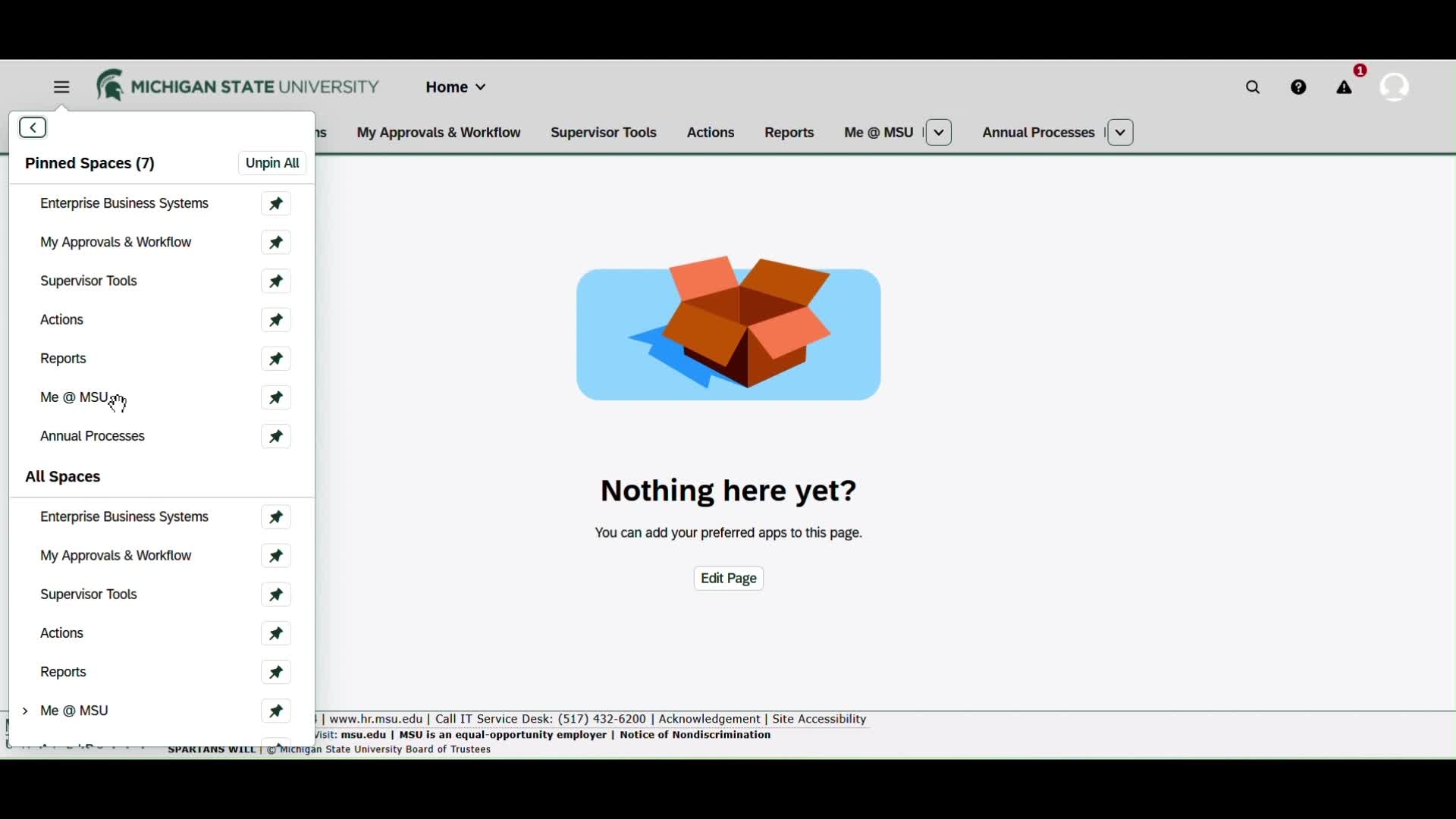
If you choose to not have a personalized layout in the EBS Portal, and stay with the default layout, you can hide the "My Home" page.
- Start in the “Profile” icon (upper right)
- Select “Settings"
- Go to “Spaces and Pages”
- Use the checkbox to toggle “Show My Home” on or off
- Choose “Save”
The leftmost tab (Enterprise Business Systems) will now be the default page when logging in or clicking on the MSU Logo. Reverse the steps above to restore "My Home."
Choose a different theme or toggle on and off items like “Frequently Used,” “Recently Used,” and the “My Home” tab. Watch the "Other Settings" video to learn more (1 min., 57 sec.).
To make any change below start in the “Profile” (person) icon at top of the EBS Portal, then select “Settings”…
Change theme:
- Go to “Appearance”
- Choose the desired theme
- Choose “Save”
“Recent Activities”/"Frequently Used" on or off:
- Go to “User Activities”
- Turn on/off “Track my recent activity and frequently used apps” with the checkbox
- Choose “Save”
Disable/enable “My Home”:
- Go to “Spaces and Pages”
- Turn off/on “Show My Home” with the checkbox
- Choose “Save”