HUMAN CAPITAL MANAGEMENT (hcm)
ANALYTICS DASHBOARD
- Overview & Purpose
- Quick Start
- Report Structure & Navigation
- Video Walkthroughs
- Access & Security Roles
- Interpreting the Data
Overview & Purpose
The HCM Dashboard provides a comprehensive view of workforce metrics for benefit-eligible employees across fiscal years. It offers both a high-level overview and the ability to drill into detailed data for deeper insights from fiscal year 2012 to present.
Use this dashboard to monitor workforce trends over time—such as headcount, turnover, retention, and retirement—and to support planning and decision-making at the organizational level.
Quick Start
| Step | What to Do | Where to Find It |
|---|---|---|
| 1 | Open the HCM Dashboard | In the EBS Portal, go to Reports → Human Capital Management (HCM). |
| 2 | Select your filters | Use the filters at the top (e.g., Org Unit, Employee Type). Click Adapt filters to add/remove options. |
| 3 | Explore your metrics | Review the visual "cards" for Headcount, Turnover, Retention and more. |
| 4 | Drill into details | Click a chart or data point to open the interactive Drilldown for that fiscal year. |
| 5 | Customize and save | Adjust chart types, dimensions, sorting or filters - then save your layout for quick access later. |
- Tip: If you don't see a card you expect, your access level may not include that data.
- Watch: Basic Navigation and Customizing & Saving Views tutorials for step-by-step demonstrations.
Report Structure & Navigation
› Level 1: Dashboard
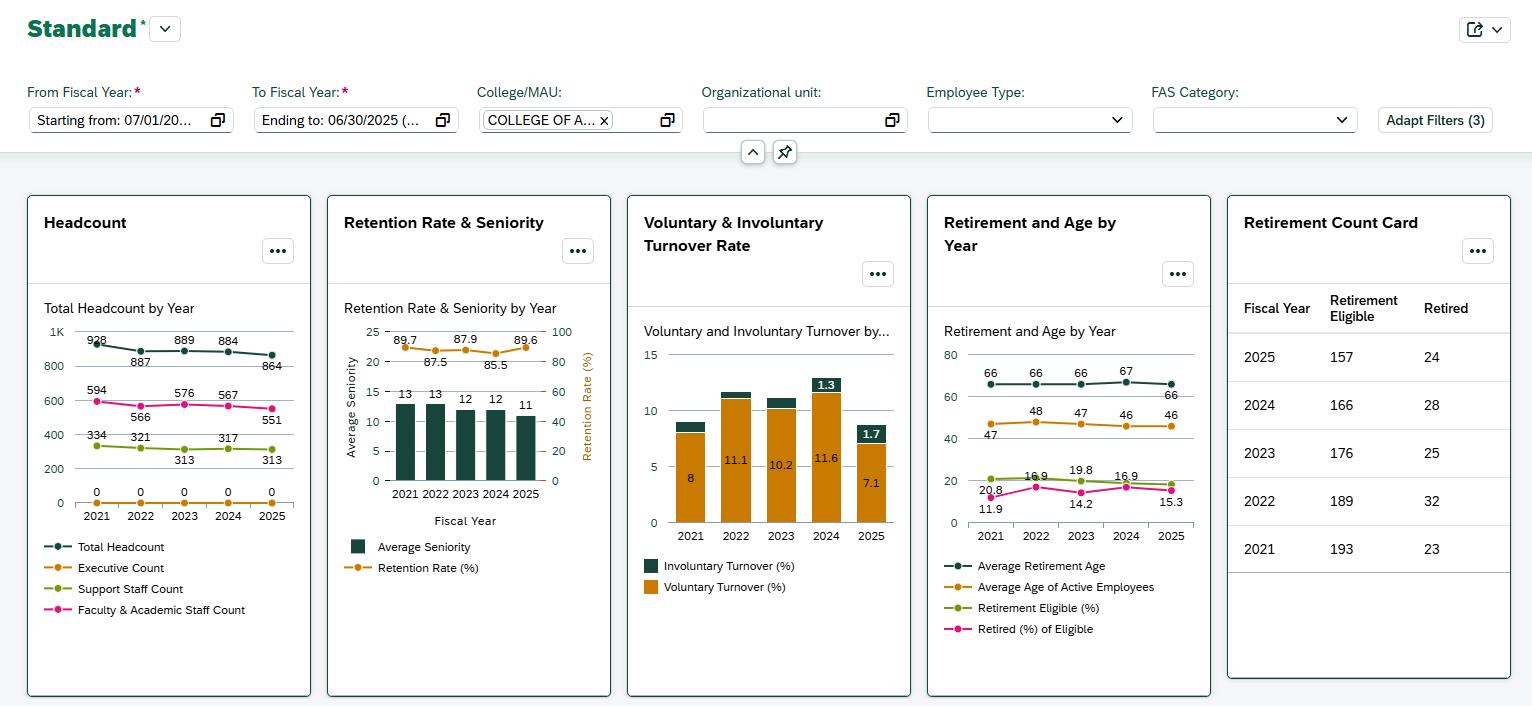
Displays key workforce metrics across fiscal years, organized into visual "cards". By default, the last five fiscal years will be displayed but filters can be adjusted to display data back to fiscal year 2012. Each card includes interactive charts and summary metrics for the selected filters. For details about data definitions and formulas,visit the help page for each card:
* Available to users with the Report Administrative Sensitive role
The following filters can be applied on the dashboard:
|
Visible by Default |
Available through 'Adapt Filters' |
*Required Filter |
|
› Level 2: Drilldown
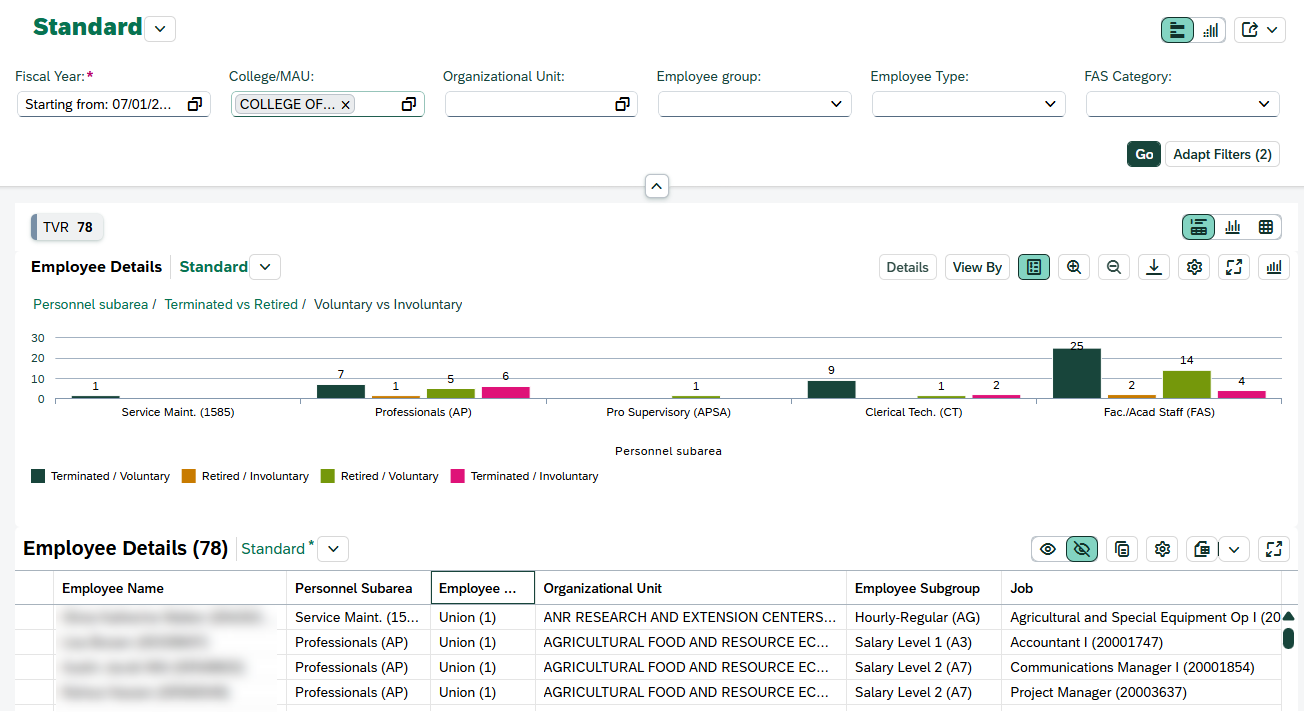
Clicking on a data point within a card opens a detailed, interactive view for that specific fiscal year containing chart and table views. Visit the help page for each card for details on available filters and dimensions within each drilldown page. For instructions on how to customize and save your views, see the Customizing & Saving Views video.
-
- Note: Drilldown is not enabled for the 'Retirement Counts' card.
Video Walkthroughs
- Basic Navigation: This video provides a quick walkthrough of the Human Capital Management Dashboard, demonstrating how to navigate the report, apply filters, explore data and export information.
- Customizing & Saving Views: Learn how to customize and save your chart and table views in the Human Capital Management dashboard—so you can quickly access the layouts and data most relevant to your needs.
Access & Security Roles
The HCM Dashboard is found under the Reports group in the EBS Portal for users with the following roles:
- Report Administrator
- Report Administrator Sensitive
Security Notes:
- Org-based security applies; users will only see data for organizations they are permissioned to access.
-
The following cards contain sensitive data and will only appear for users with the Sensitive role.
- Retirement & Age
- Generation
- Race and Ethnicity
- Gender
- Performance Review Completion & Timeliness
- Performance Review Ratings
Interpreting the Data
When interpreting metrics in the HCM Dashboard, keep in mind that workforce data can be influenced by a variety of factors outside of typical trends or patterns. Understanding these context drivers will help ensure accurate interpretation of results.
Key Considerations:
- Organizational Changes: Structural changes such as department realignments, reorgs, or new reporting relationships may impact metrics from one fiscal year to another.
- Effective Dates: Metrics are based on employees’ status and assignments as of key effective dates in the system and fiscal year. View the help page for each card for detailed formulas.
- Eligibility Criteria: The dashboard includes benefit-eligible employees only. Temporary, on-call, student, graduate, undergraduate and non-benefit-eligible faculty and staff are excluded.
Tip: When reviewing trends, consider supplementing your analysis with local HR context or organizational history to explain unexpected shifts.