HCM Analytics
Performance Review Completion & Timeliness
Overview
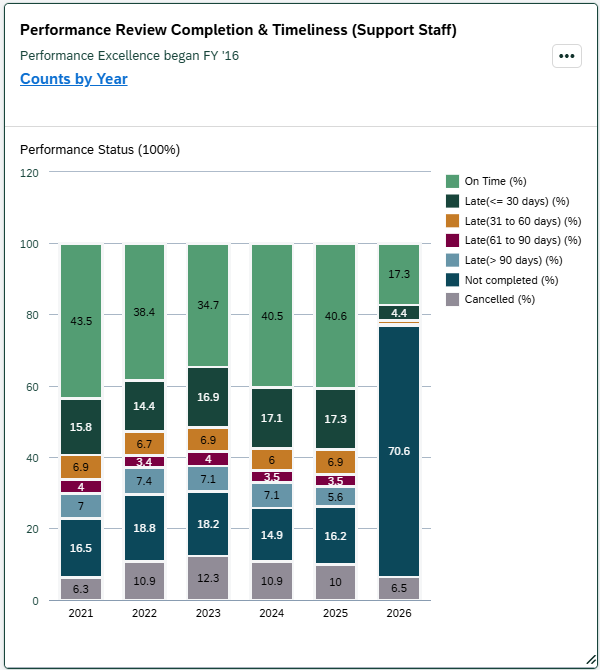
The Performance Review Completion & Timeliness Card displays the status of annual performance reviews for support staff employees, including whether reviews were completed and how timely they were relative to the review due date.
This card is based on the Performance Excellence process and tracks review activity recorded in the HR/Payroll system.
Performance Excellence was launched in FY16. Data prior to FY16 reflects department-led review processes and may not be complete or directly comparable to later years.
Click the “Counts by Year” link to view the number of employees within each status category.
Key Metrics & Definitions
Percentages represent the distribution of performance review statuses for benefit-eligible support staff employees who were active as of July 1 of the selected fiscal year. Categories are mutually exclusive and sum to 100%.
Performance review status is determined based on the review task due date within the fiscal year (July 1 – June 30).
- On Time: Performance review completed on or before the assigned due date.
- Late (≤ 30 days): Performance review completed within 30 days after the due date.
- Late (31–60 days): Performance review completed 31–60 days after the due date.
- Late (61–90 days): Performance review completed 61–90 days after the due date.
- Late (> 90 days): Performance review completed more than 90 days after the due date.
- Cancelled: Performance review was formally cancelled in the system due to a valid business reason. Examples include role changes (e.g., reclassification), supervisor changes requiring a new review cycle, or other situations where the review process was restarted or restructured.
- Not Completed: No performance review was recorded as completed in the HR/Payroll system for employees who were active as of July 1.
Security & Access
The Generation card is available to users with the following roles:
- Report Administrator Sensitive
Org-based security applies; users will only see data for organizations they are permissioned to access.
Drilldown Page
Select any data point within the card to open the drilldown page for that fiscal year. To view a different fiscal year, adjust the Fiscal Year filter at the top of the page.
> Filters
The following filters can be applied on the drilldown page. Click 'Go' to apply your selections.
|
Visible by Default |
Available through 'Adapt Filters' |
*Required filter |
|
> Default Views
-
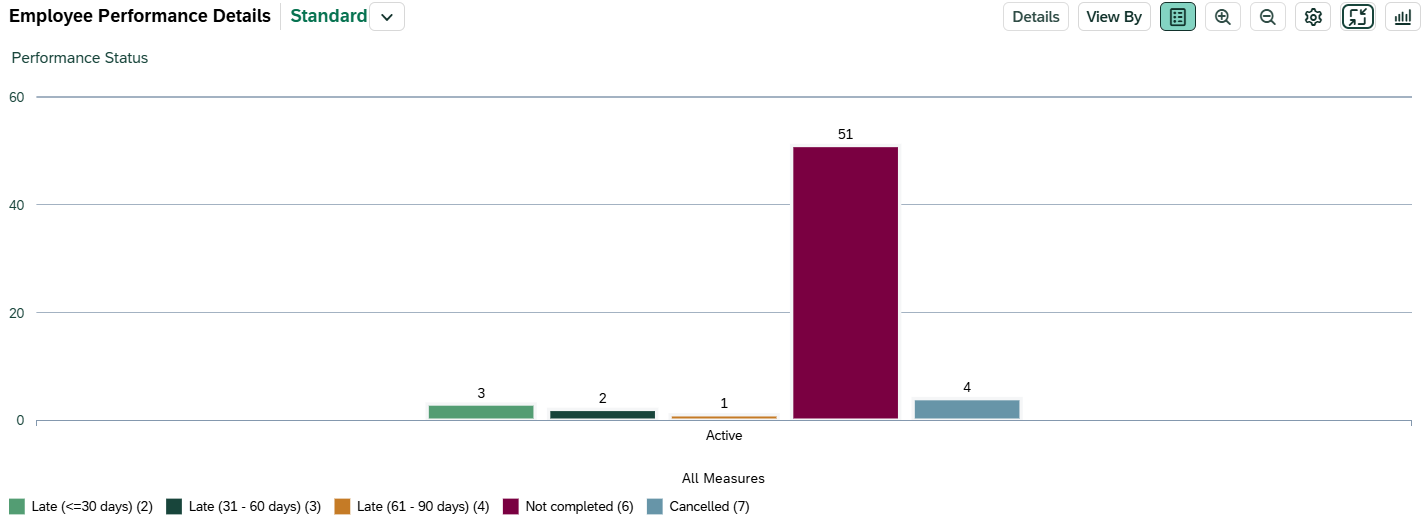
- Chart View: Displays employees by Status in a column chart.
-
-
Table View: Displays the following fields by default:
- Employee Name
- Personnel Subarea
- Employee Group
- Employee Subgroup
- Organizational Unit
- Job
- Performance Status
- Performance Rating
-
Table View: Displays the following fields by default:
> Customizing Your View
You can personalize the chart and table to better align with your analysis needs. Click the gear icon to add, remove, or reorder dimensions. For a brief walkthrough, see the Customizing & Saving Views video .

Available dimensions include:
|
|
|
Note: Employees with a performance status of 'Cancelled' or 'Not completed' will have a performance rating of 'Cancelled/Not Completed'.
Interpreting the Data
Performance review status is based on task due date recorded in the HR/Payroll system.
Results are aligned to the fiscal year based on the task due date (July 1 – June 30). If a review has a due date in one fiscal year but is completed in the following fiscal year, it is still reported in the fiscal year of the task due date.
“Late” categories are determined by the number of days between the review due date and the completion date.
“Cancelled” and “Not Completed” represent different scenarios:
- Cancelled indicates a documented business reason for stopping or restarting the review process
- Not Completed indicates no completed review was recorded in the system
When reviewing trends, consider that changes may reflect process adoption, system usage, or administrative practices, particularly in earlier years following the launch of Performance Excellence.
Please review the Interpreting the Data section on the main dashboard help page. It highlights key considerations—such as effective dates and organizational changes—that may influence results.