HCM Analytics
Gender
Overview
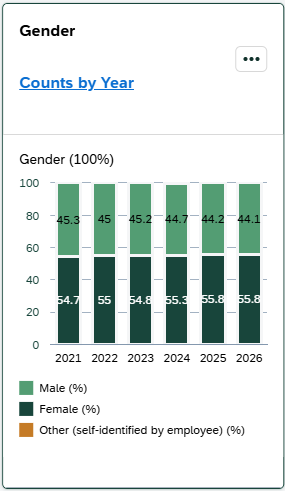
The Gender card displays the percentage distribution of benefit-eligible employees by gender as of July 1 of the selected fiscal year. This card provides a high-level view of gender representation within the workforce.
Click the “Counts by Year” link to view the number of employees in each gender category in a table format.
Key Metrics & Definitions
Percentages represent the distribution of benefit-eligible employees by gender as of July 1.
Employees listed under 'Other' represent individuals who self-identified with a gender category outside the standard options available in the HR/Payroll system.
Security & Access
The Race & Ethnicity card is available to users with the following roles:
- Report Administrator Sensitive
Org-based security applies; users will only see data for organizations they are permissioned to access.
Drilldown Page
Select any data point within the card to open the drilldown page for that fiscal year. To view a different fiscal year, adjust the Fiscal Year filter at the top of the page.
> Filters
The following filters can be applied on the drilldown page. Click 'Go' to apply your selections.
|
Visible by Default |
Available through 'Adapt Filters' |
*Required filter |
|
> Default Views
-
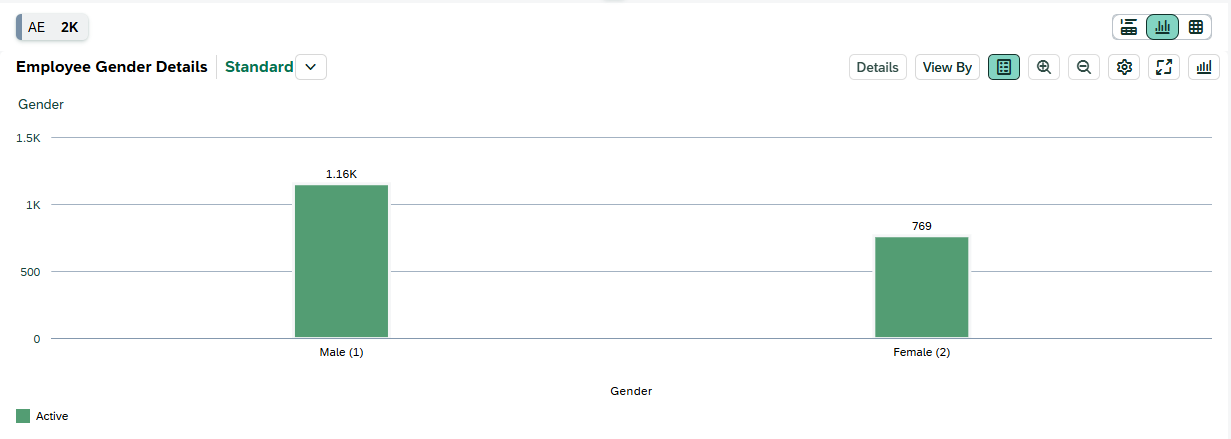
- Chart View: Displays employees by Gender in a column chart.
-
-
Table View: Displays the following fields by default:
- Employee Name
- Personnel Subarea
- Employee Group
- Employee Subgroup
- Organizational Unit
- Job
- Race/Ethnicity
- Gender
- Work Contract
-
Table View: Displays the following fields by default:
> Customizing Your View
You can personalize the chart and table to better align with your analysis needs. Click the gear icon to add, remove, or reorder dimensions. For a brief walkthrough, see the Customizing & Saving Views video .

Available dimensions include:
|
|
|
Interpreting the Data
Gender values reflect the information stored in the HR/Payroll system based on employee self-identification. Employees listed under 'Other' represent individuals who self-identified with a gender category outside the standard options available in the HR/Payroll system.
Please review the Interpreting the Data section on the main dashboard help page. It highlights key considerations—such as effective dates and organizational changes—that may influence results.